PST to Microsoft 365 Migration Made Easy with Stellar Migrator for Outlook
Stellar Migrator for Outlook is a Windows-based desktop application designed to import PST and OST files directly into Microsoft 365 (Office 365) mailboxes — bypassing the complex manual pipeline that Microsoft’s native tooling requires. Targeted at IT administrators, MSPs, and organizations that need to migrate legacy Outlook data to the cloud, the tool promises a point-and-click experience without touching Azure Blob Storage or PowerShell.
This review assesses the tool based on its published features, documented workflow, and known architectural trade-offs. It is not sponsored by Stellar.
Quick-Glance Ratings
| Category | Score | Rating |
| Ease of Use | ■■■■□ | 4/5 |
| Migration Reliability | ■■■■□ | 4/5 |
| Feature Depth | ■■■■□ | 4/5 |
| Speed & Performance | ■■■□□ | 3/5 |
| Value for Money | ■■■■□ | 4/5 |
| Overall | ■■■■□ | 4/5 |
■ = filled □ = unfilled Scale: 1 (Poor) – 5 (Excellent)
What Problem Does It Solve?
Microsoft 365’s native PST import mechanism — the Microsoft 365 Compliance Center / Import Service — is technically capable but operationally demanding. It requires uploading PST files to Azure Blob Storage, running the Azure AzCopy utility, creating a CSV mapping file, and submitting an import job through the compliance portal. For small-to-mid organizations without dedicated Azure expertise, this process is error-prone and time-consuming.
Stellar Migrator for Outlook sidesteps this entirely by connecting directly to the Office 365 tenant via Microsoft’s Exchange Web Services (EWS) API and uploading mailbox data without any intermediate cloud storage step. The value proposition is clear: fewer moving parts, no Azure prerequisite, no command-line tools.
Key Features at a Glance
- Supports both PST (Outlook data) and OST (offline/cached data) as source formats
- Connects to Microsoft 365 using admin credentials via EWS API
- Auto-mapping of mailboxes based on matching email addresses in the PST
- Batch migration: migrate multiple mailboxes in a single job
- Incremental / delta migration: re-running a job skips already-migrated items, preventing duplicates
- Date-range and folder-type filters (e.g. exclude Deleted Items, Junk, Drafts)
- Real-time per-mailbox progress reporting during migration
- Supports password-protected and encrypted PST/OST files
- Auto-splits output at 45 GB to prevent corruption from oversized PST files
- Runs entirely on local infrastructure — data never routes through Stellar’s servers
In-Depth Analysis
Setup and Authentication
Installation is a standard Windows MSI deployment. Authentication uses Microsoft 365 global administrator credentials plus an application registration in Azure Active Directory — a one-time setup step that grants EWS permissions. The process is documented and follows Microsoft’s standard OAuth model.
One friction point worth noting: the tool does not persist saved connection profiles between sessions. Each new migration job requires re-entering admin credentials. For organizations that perform recurring migrations (e.g., onboarding batches of new users), this becomes repetitive. Stellar has acknowledged this as a known gap targeted for a future release.
Migration Workflow
The workflow follows a logical sequence: connect to the M365 tenant, load PST/OST source files, map source mailboxes to destination mailboxes, configure filters, and execute. Auto-mapping is a genuine time-saver — the tool matches mailboxes by email address embedded in the PST, reducing manual effort on large jobs.
The incremental migration capability is technically important. If a migration job is interrupted or needs to be re-run after new emails have arrived in the source PST, the tool identifies previously migrated items and skips them. This prevents duplicate emails in the destination mailbox — a problem that plagues simpler migration tools.
Performance and Speed
Migration throughput is bounded by local infrastructure: the speed of the machine running the tool, the local network, and the M365 tenant’s inbound throttling limits (governed by Microsoft’s EWS throttling policies). Unlike cloud-to-cloud migration tools that can parallelize at scale using Microsoft’s data center resources, Stellar Migrator for Outlook is constrained to what a single on-premises machine can push.
For large enterprise migrations (tens of thousands of mailboxes or terabytes of data), this architectural constraint matters. The tool is best positioned for small-to-medium jobs — typically under a few hundred mailboxes or a few hundred GB of PST data.
Data Fidelity and Reliability
The tool preserves folder hierarchy, email metadata (sender, recipient, timestamps), attachments, calendar items, contacts, and tasks. The 45 GB auto-split feature demonstrates awareness of Outlook’s PST size limits and helps avoid file corruption during large exports.
One pre-condition worth flagging: destination mailboxes must already exist in the M365 tenant before migration. The tool does not provision new users or create mailboxes. Administrators must ensure user accounts are set up in advance, which is reasonable but worth planning for in bulk migration scenarios.
Security and Compliance
Because the tool runs locally and communicates directly with Microsoft’s APIs, no PST data traverses Stellar’s infrastructure. This is a meaningful advantage for organizations with data residency requirements or strict compliance mandates (GDPR, HIPAA, etc.). The migration path is: local machine → Microsoft 365 tenant — and nothing else.
Support for encrypted and password-protected PST files reduces the risk of needing to decrypt data at rest before migration.
How to Use Stellar Migrator for Outlook
The following walkthrough covers the complete migration workflow — from selecting source PST/OST files through to initiating the migration. The process is designed around a straightforward wizard interface with no command-line tools or Azure configuration required.
Step Action & Details
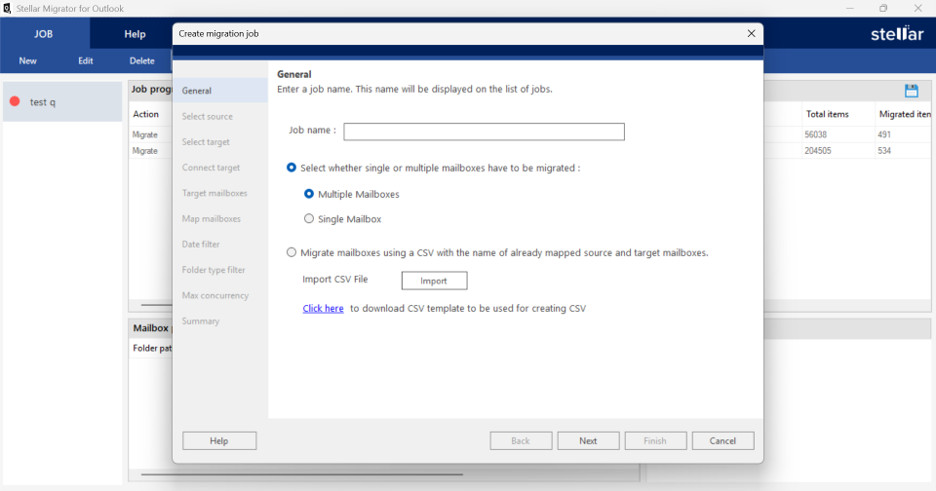
- Create a Migration Job
Launch the software. Enter a Job Name and choose whether to migrate multiple mailboxes, a single mailbox, or import an already-mapped CSV file. Click Next.
- Select Source (OST/PST Files)
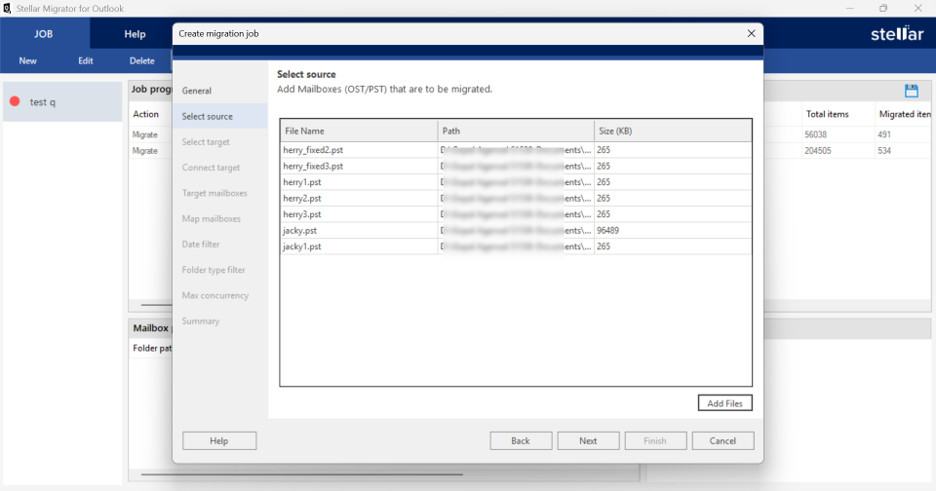
Click Select Files and choose the OST or PST files to migrate. Both types can be added together. Files are listed with name, path, and size. Click Next.
- Choose the Target
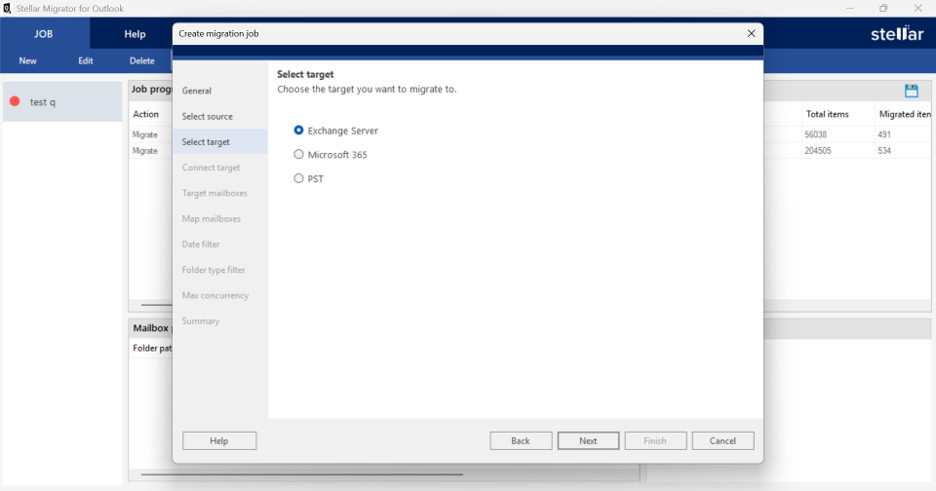
Select the destination environment: Exchange Server, Microsoft 365, or PST. Click Next to proceed to the connection step.
- Connect to Microsoft 365
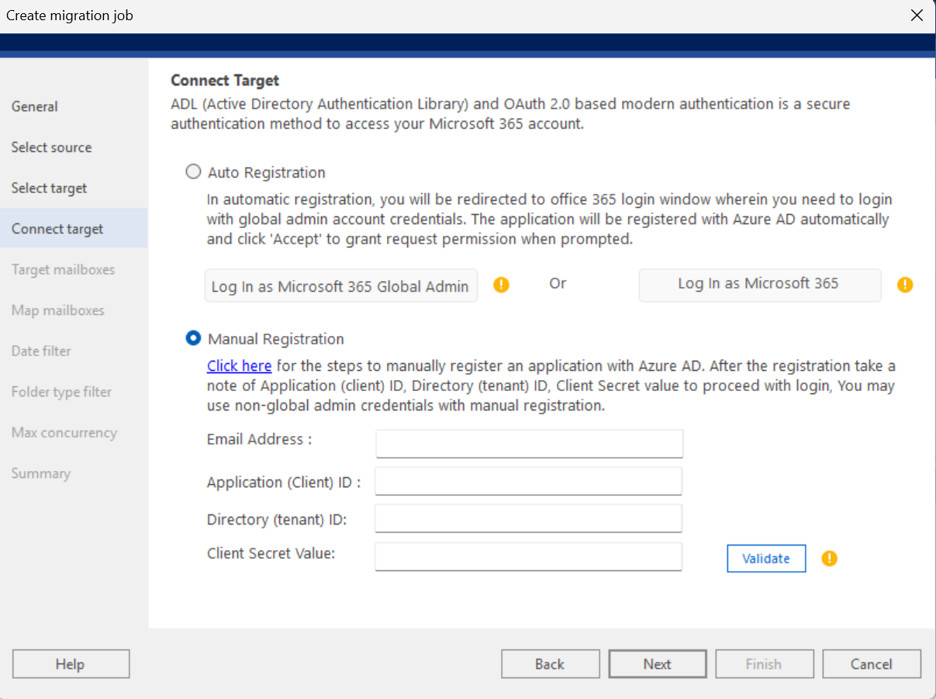
If migrating to M365: choose Auto Registration (global admin OAuth login) or Manual Registration (enter Application/Client ID, Directory/Tenant ID, and Client Secret). Validate and click Next.
- Preview Target Mailboxes
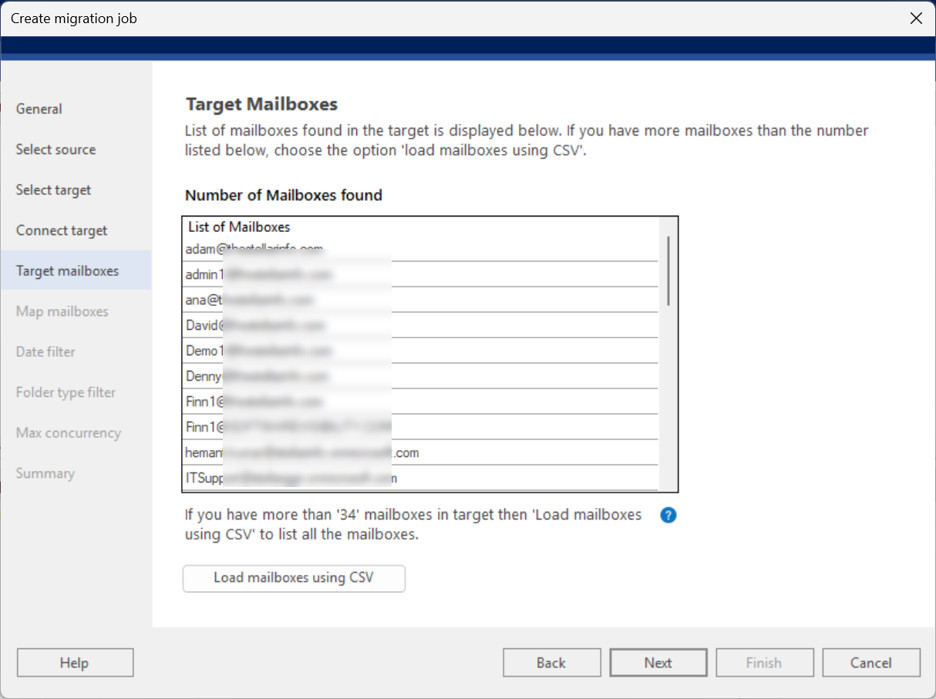
The tool fetches all mailboxes on the target server. For large environments, load additional mailboxes via CSV. Review the list and click Next.
- Map the Mailboxes
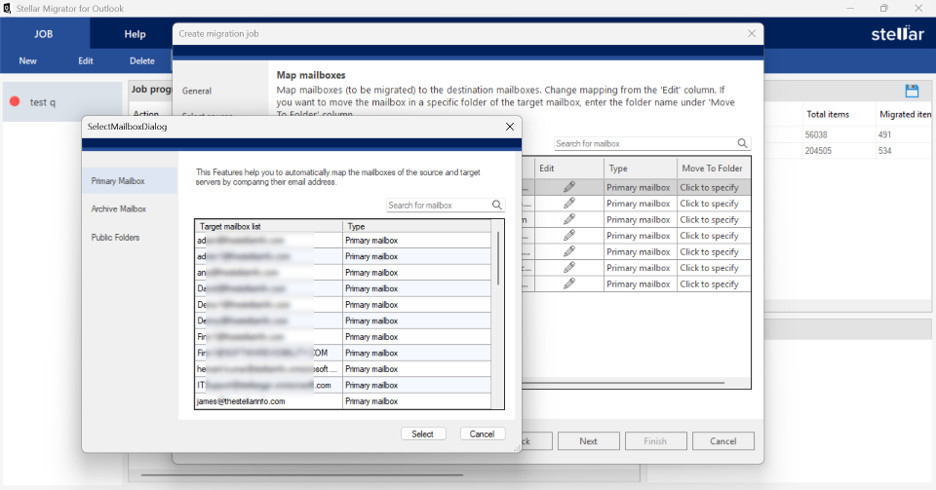
The tool auto-maps source to target mailboxes by email address. Use the Edit button to correct any mismatches. Set priority order as needed. Use Click to Specify to target a specific destination folder. Click Next.Apply Date Filter
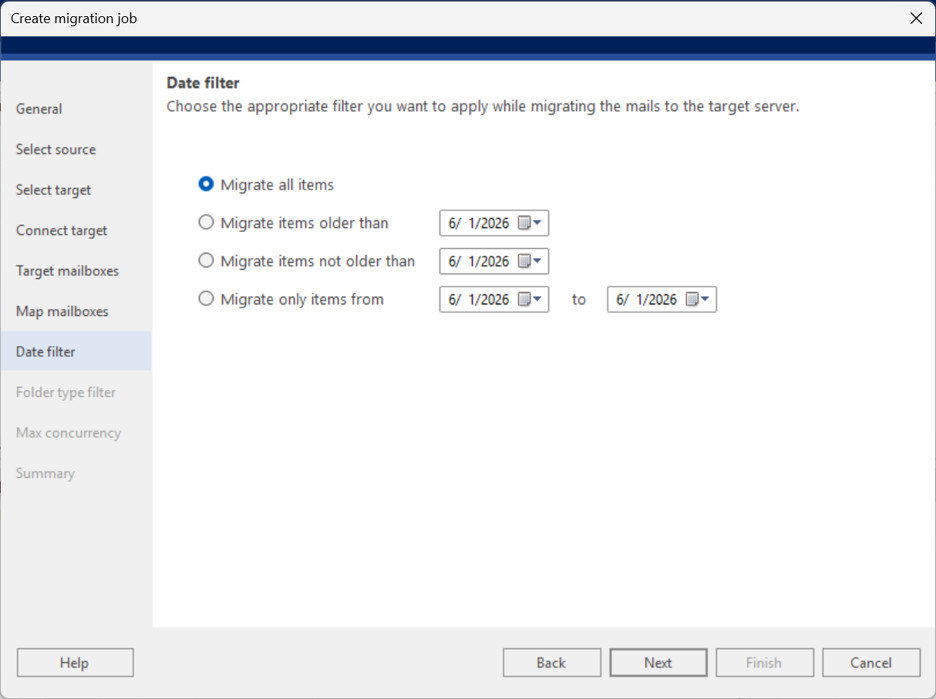
Optionally filter mail items: migrate all items, items older than a date, items not older than a date, or items within a specific date range. Click Next.
- Select Folder Types
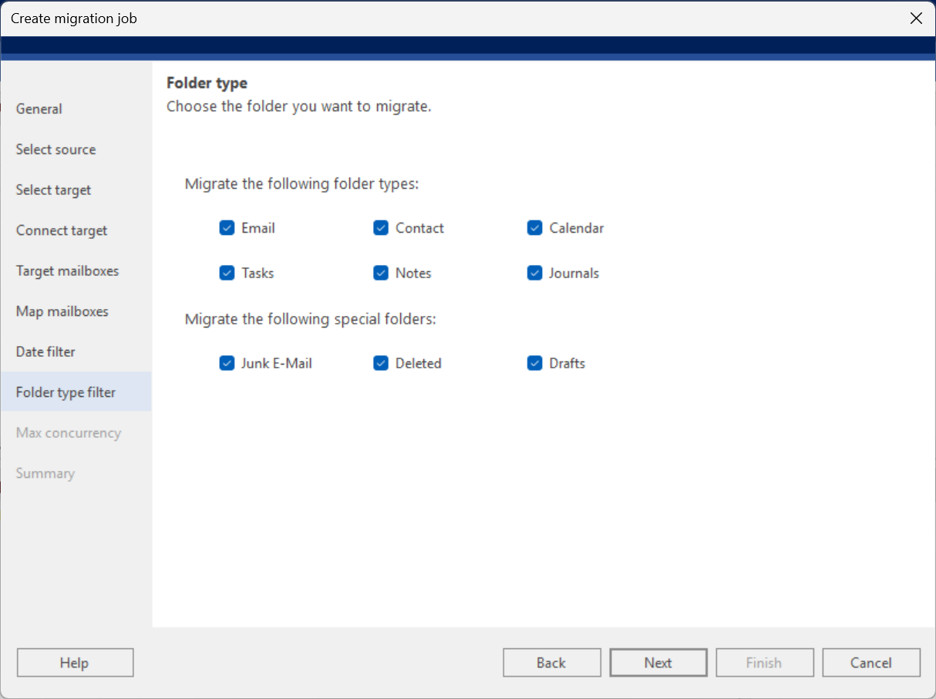
Include or exclude folder types: Emails, Contacts, Tasks, Calendars, Journals, Notes, Drafts, Deleted Items, Junk Email. Click Next.
- Set Concurrency Limit
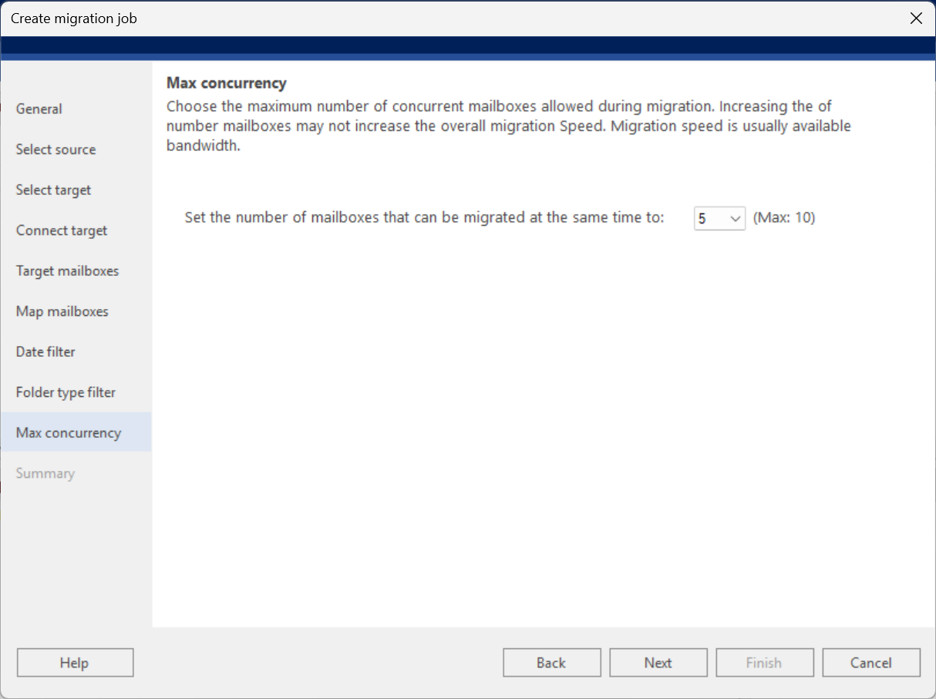
Choose how many mailboxes to migrate simultaneously (maximum 10). Balance speed against available system resources. Click Next.
- Review Job Summary:
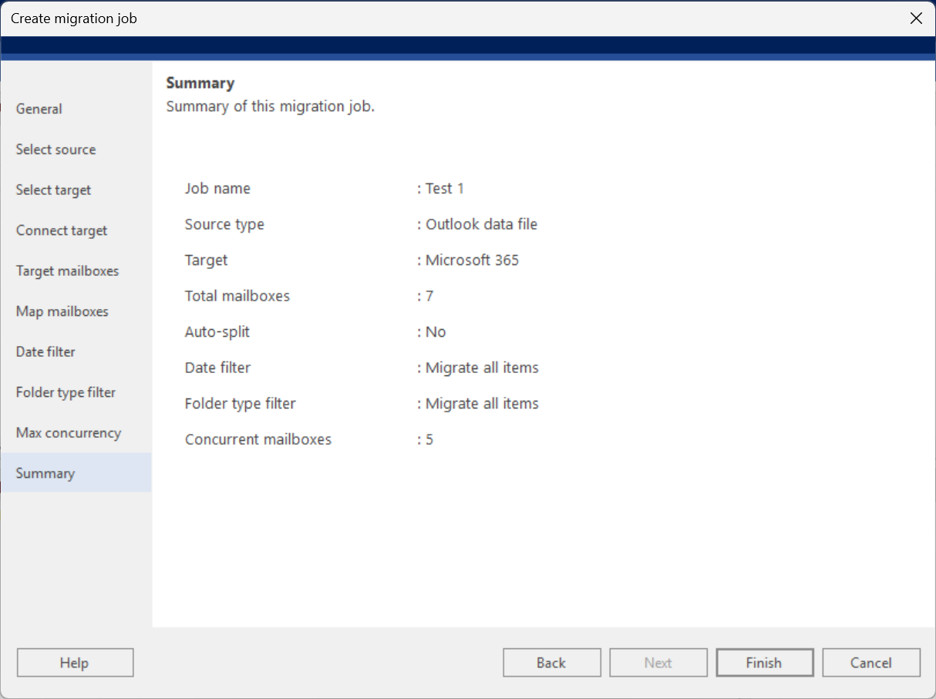
A consolidated summary displays all settings: job name, source/target types, mailbox count, filters, and concurrency. Verify everything is correct, then click Finish and OK on the confirmation dialog.
- Start the Migration
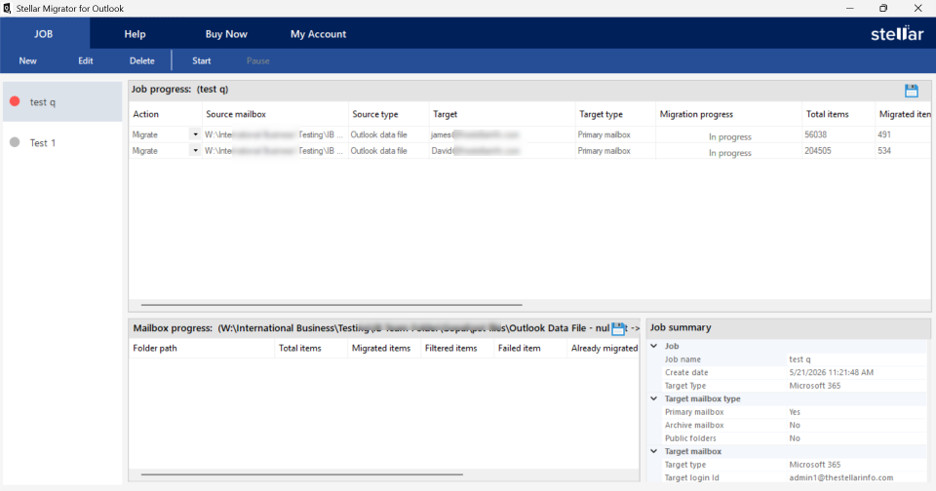
Click Start in the Job ribbon. Monitor progress via Job Progress (overall status) or Mailbox Progress (per-folder detail). Pause is available but not recommended mid-run.
- Edit a Running Job (if needed)
Source/target connections cannot be changed once migration starts. However, date filters, folder type filters, concurrency value, and expired credentials can be updated mid-job.
- Migrate to PST (optional path)
If PST was selected as the target in Step 3, the Connect Target and Target Mailboxes steps are skipped. On the Map Mailboxes screen, set the destination file path, optionally rename output PSTs, and enable Auto Split Output PST (auto-splits at approximately 45 GB). Click Next to complete.
Note: Admin credentials with Application Impersonation rights on the target server are required. Destination mailboxes must exist before migration begins — the tool does not provision new user accounts.
Pros and Cons
| STRENGTHS | |
| ✔ | Eliminates the complex Azure Blob Storage + PowerShell pipeline required by Microsoft’s native import |
| ✔ | Auto-mailbox mapping by email address reduces manual configuration on multi-mailbox jobs |
| ✔ | Incremental / delta migration prevents duplicate items on re-runs |
| ✔ | Real-time per-mailbox progress visibility |
| ✔ | Handles encrypted and password-protected source files |
| ✔ | Entirely local data path — no third-party cloud involvement |
| ✔ | Granular filters (date range, folder type) for selective migration |
| LIMITATIONS | |
| ✘ | No saved connection profiles — credentials must be re-entered for each new migration job |
| ✘ | Does not provision destination mailboxes — M365 accounts must be created in advance |
| ✘ | Windows-only; no macOS or Linux support |
Final Verdict
Stellar Migrator for Outlook earns its place in the migration toolkit by solving a genuine usability gap in the Microsoft 365 ecosystem. For IT teams that regularly encounter legacy PST archives and need a reliable, GUI-driven path into M365 without standing up Azure infrastructure, it delivers exactly what it promises.
The incremental migration engine, auto-mailbox mapping, and local data path are the standout differentiators. The absence of saved connection profiles is the most notable rough edge — it adds friction on recurring jobs — but it does not undermine the core workflow.
The pay-per-use licensing model (rather than a flat annual subscription) suits the occasional-to-regular migration cadence of MSPs and smaller IT departments better than tools priced for continuous enterprise use.
Verdict: Recommended for small-to-mid M365 migration jobs. A solid, focused tool that does its specific job well — without unnecessary complexity.
.