Fixing SQL Restore Errors: Resolving “Database in Use” Issues Step-by-Step
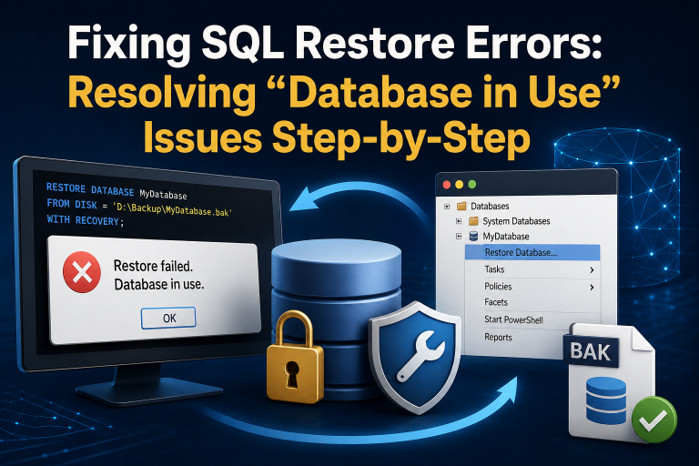
If your SQL database is corrupted, you can restore the backup file. However, sometimes, while restoring the backup file, you may encounter the “restore failed” error – Database in use.
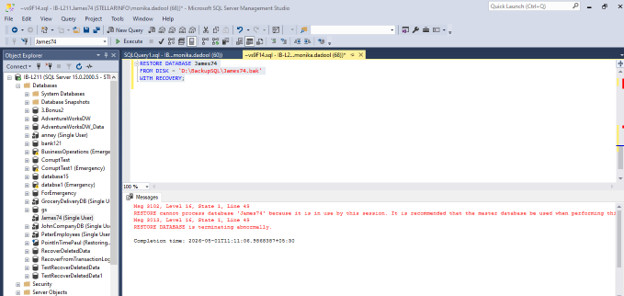
This restore error appears when you try to restore a database while the query window is still connected to that same database. It can also occur if there are some issues with your backup file or you lack the required permissions. In this article, we will discuss different methods, with stepwise instructions, to fix the SQL database restore error. We will also mention an advanced SQL repair tool that can help resolve the issue if it is due to corrupt SQL database backup file.
Step-by-Step Methods to Fix “Database in Use” Error during SQL Database Restore
To resolve this error, first check and restart the SQL Server services and then follow the methods below.
Method 1 – Close Existing Connections to the Database
If there are active connections to the database, it can lead to a restore failed error. To resolve it, you can check and disconnect all the existing connections to the database. For this, select the “Close existing connections to destination database” option when restoring the database. Here’s how:
- In SSMS, first connect to the appropriate SQL Server instance and then, under the Object Explorer, right-click Databases, and then click Restore Database.
- In the Restore Database window, select the database. Click Options.
- On the Options window, check the checkbox ‘Close existing connections to destination database’.
If you’re facing the error while restoring backup using the command-line, then use the KILL command to close connections to the database. For this, first run these commands:
SELECT session_id, login_name, host_name, program_name
FROM sys.dm_exec_sessions
WHERE database_id = DB_ID(‘James74’);
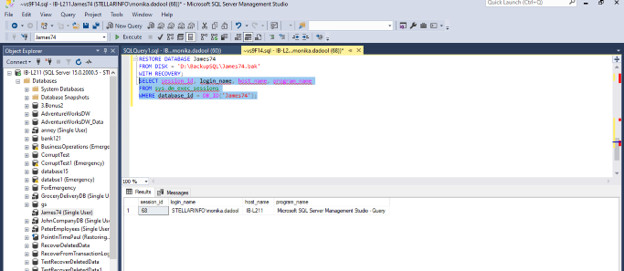
It shows the session ID value i.e. 68, now use it in KILL command.
For example: KILL 68;
Alternatively, you can try these queries:
ALTER DATABASE James74 SET SINGLE_USER WITH ROLLBACK IMMEDIATE;
USE master;
RESTORE DATABASE James74
FROM DISK = ‘D:BackupSQLJames74.bak’
WITH RECOVERY;
The ALTER DATABASE … SET SINGLE_USER WITH ROLLBACK IMMEDIATE command will force all existing connections to close and roll back any active transactions. The USE master command will switch your session away from the database being restored.
Method 2 – Check and Provide Desired Permissions
Insufficient permissions on the folder where your backup file is located can also lead to restore failed errors. You must have read, write, and control permissions on the folder.
To check and provide permissions, follow these steps:
- Go to the backup file folder, right-click on it, and select Properties.
- Check the permissions. If you do not have permissions on the folder, click the Security tab and select Advanced.
- In the Advanced Settingswindow, click on Change Permissions.
- Click Administrators > Edit.
- Select the Full Control box, below the Allow
- Click OK > Apply.
Method 3 – Repair Database Backup File using Professional SQL Repair Tool
Corruption in the backup file is also one of the reasons for the restore failed error in MS SQL. To confirm it, first check the integrity of the backup. If it is corrupted, then to repair it, there is no native tool available. In such a case, you can take the help of a reliable SQL repair tool, like Stellar Repair for MS SQL Technician, to repair the corrupt .BAK file. It can easily restore all the data from the backup file, including deleted objects. Also, it can even help you repair MDF/NDF files with complete integrity without any file-size restrictions.
How Stellar Repair for MS SQL Technician helps Resolve Restore Failed Errors?
- Repairs severely corrupted SQL database and .BAK backup files that causes restore failures.
- Recovers inaccessible database objects like tables, indexes, triggers, and keys after failed attempts to restore.
- Resolves restore failures caused by corruption or header damage in backups.
- Ensures data integrity with minimal or no data loss during .BAK file recovery.
- Supports recovery from large and complex backup file.
- Provides a preview of recoverable data before saving.
- Saves repaired data directly to a new or existing SQL Server database.
- Reduces downtime with a quick recovery process.
Conclusion
To resolve the SQL Server restore error – Database in use, make sure the database you’re trying to connect is not actively connected. You can first close the active connection by using the KILL command or use the ALTER DATABASE … SET SINGLE_USER WITH ROLLBACK IMMEDIATE command. Then, try to restore the backup. If the restore failed due to corruption in the backup file, then you can use the professional SQL repair tool – Stellar Repair for MS SQL – Technician. This tool can help you recover all the objects from the corrupted SQL database backup file with complete integrity.